
PSBI + Bob Hiring
Set up Bob Hiring for background checks
Install the PSBI app, make sure your pipeline has a Background check stage, confirm the packages your recruiters can order, and validate one complete check from order to result.
Overview
Integration details
| Property | Value |
|---|---|
| Integration type | Bob Hiring background-check provider | Bidirectional |
| Authentication | OAuth 2.0, authorized once by a Bob administrator |
| Sync frequency | Event-based: each check a recruiter orders, and each status change PSBI makes |
| Fields read | Candidate name, email and phone; the job opening; who ordered the check; the package chosen |
| Fields written | The check's status, and one line per search with its own status |
Using Bob as your HRIS as well? Screening employees from the employee record is a separate app with its own guide: Set up Bob for background screening →
Required roles
You / Bob administrator
- Install the PSBI app from PSBI's install link
- Make sure each hiring pipeline has a stage of type Background check
- Decide which packages recruiters can order
- Run the test check and the launch checks
PSBI implementation
- Provision your connection before you install
- Map each package to the screening checklist it runs
- Publish the package list into Bob Hiring, and republish it when it changes
- Review and submit orders, and adjudicate results, in PSBI
Before you begin
You'll need:
- A Bob administrator who can install Marketplace apps and edit hiring pipeline templates.
- The list of packages recruiters should be able to order, and the checks each one includes. Each package is one PSBI checklist.
- The person who will review and submit orders in PSBI.
- One test job and one test candidate with a real, individual email address.
- Confirmation from PSBI that your connection is provisioned and your install link is ready.
Configuration steps
Install the PSBI app
- 1Ask your PSBI implementation lead for your organization's install link. There is no API key for your team to manage.
- 2Open the link while signed in to the Bob company account that will own the integration.
- 3Review the access request (Manage hiring integrations) and select Authorize in Bob.
- 4The confirmation page tells you how many packages were published to Bob Hiring. Tell PSBI that Bob shows the app as installed.
Add a Background check stage to your pipelines
- 1Go to Hiring settings → Templates and open the pipeline a job uses.
- 2Check that one stage has the stage type Background check. Bob's default pipeline ships one, named Shortlisted; if your pipeline was customized, add a stage of that type where screening belongs.
- 3Repeat for every pipeline template recruiters will order checks from.
Confirm your packages
- 1List the packages recruiters should see when they order a check, and the checks each one should run.
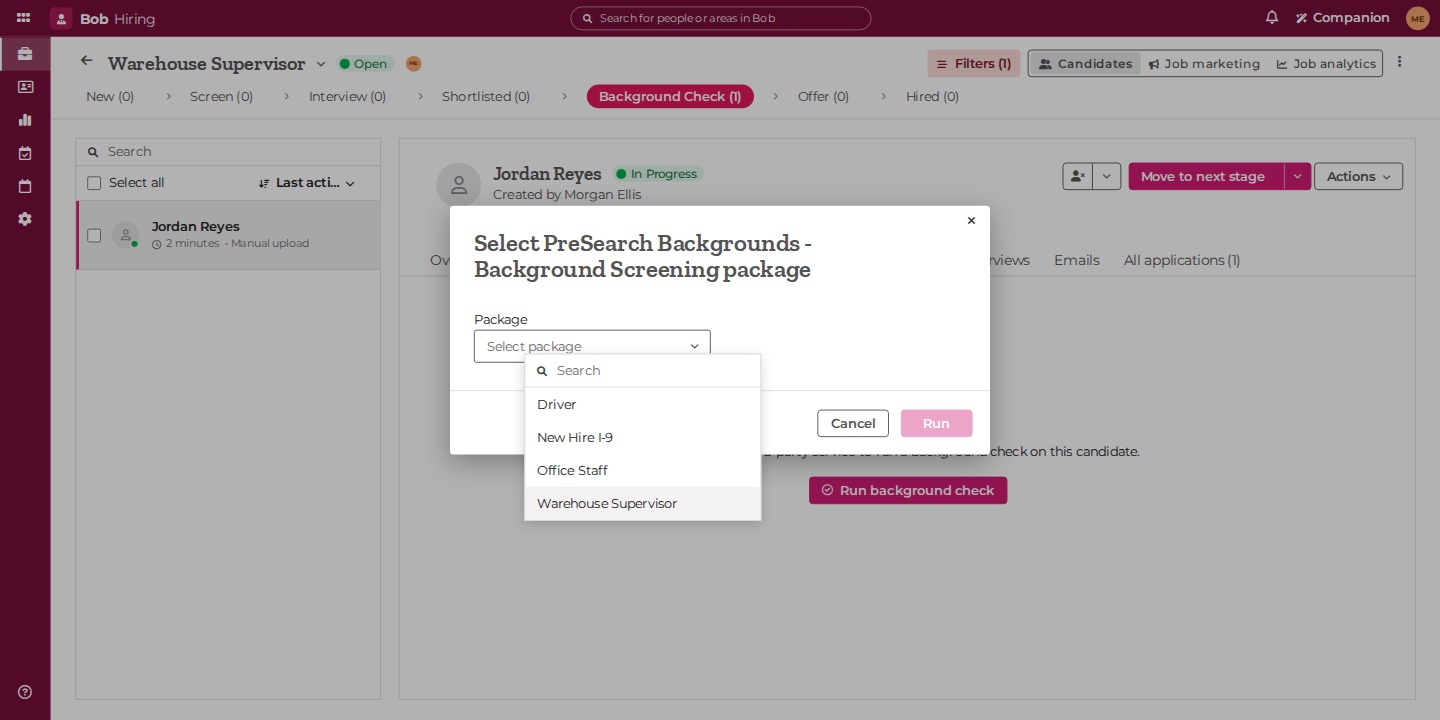
- 2PSBI maps each package to one of your screening checklists and publishes the list into Bob Hiring. The package's name and description are the checklist's, so write the description for a recruiter.
- 3Ask PSBI to confirm the packages are published before you run the test.
Order a test check
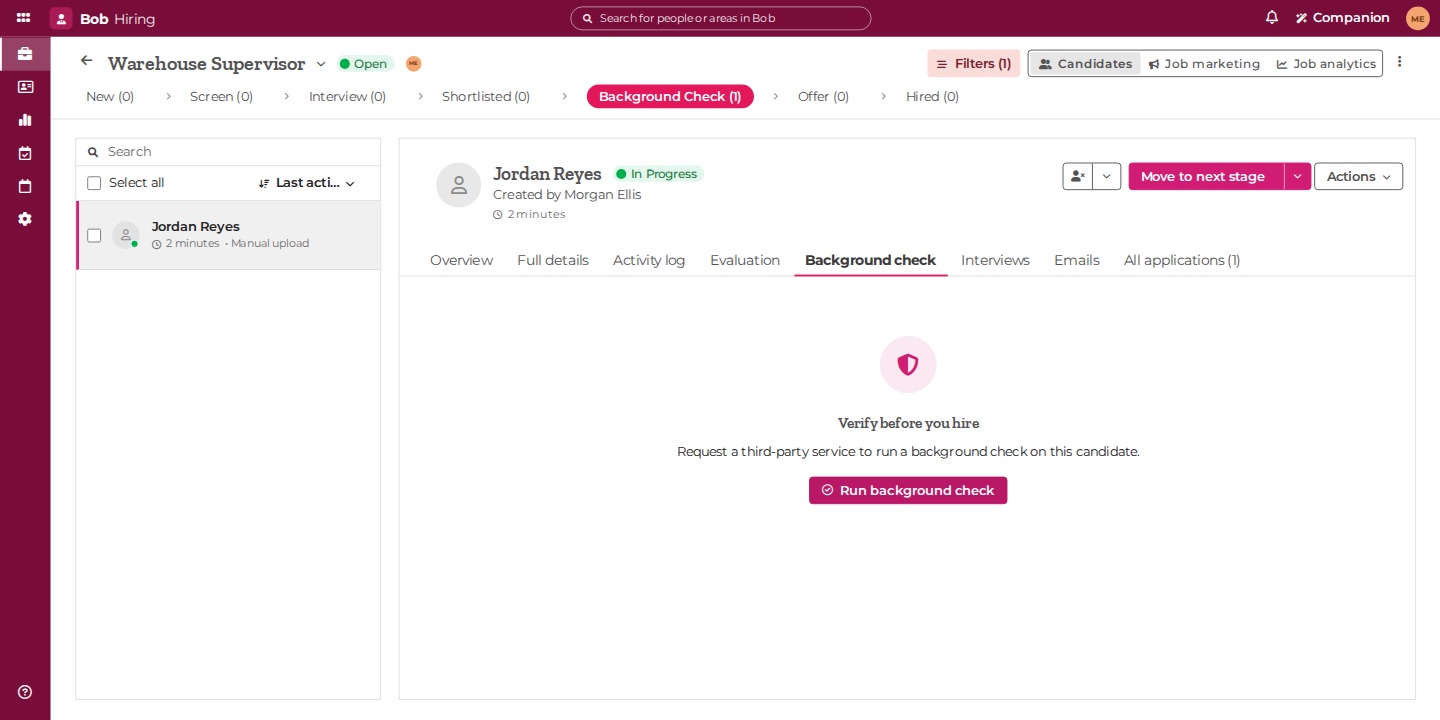
- 1Open the test candidate's application in a Background check stage and select the Background check tab.
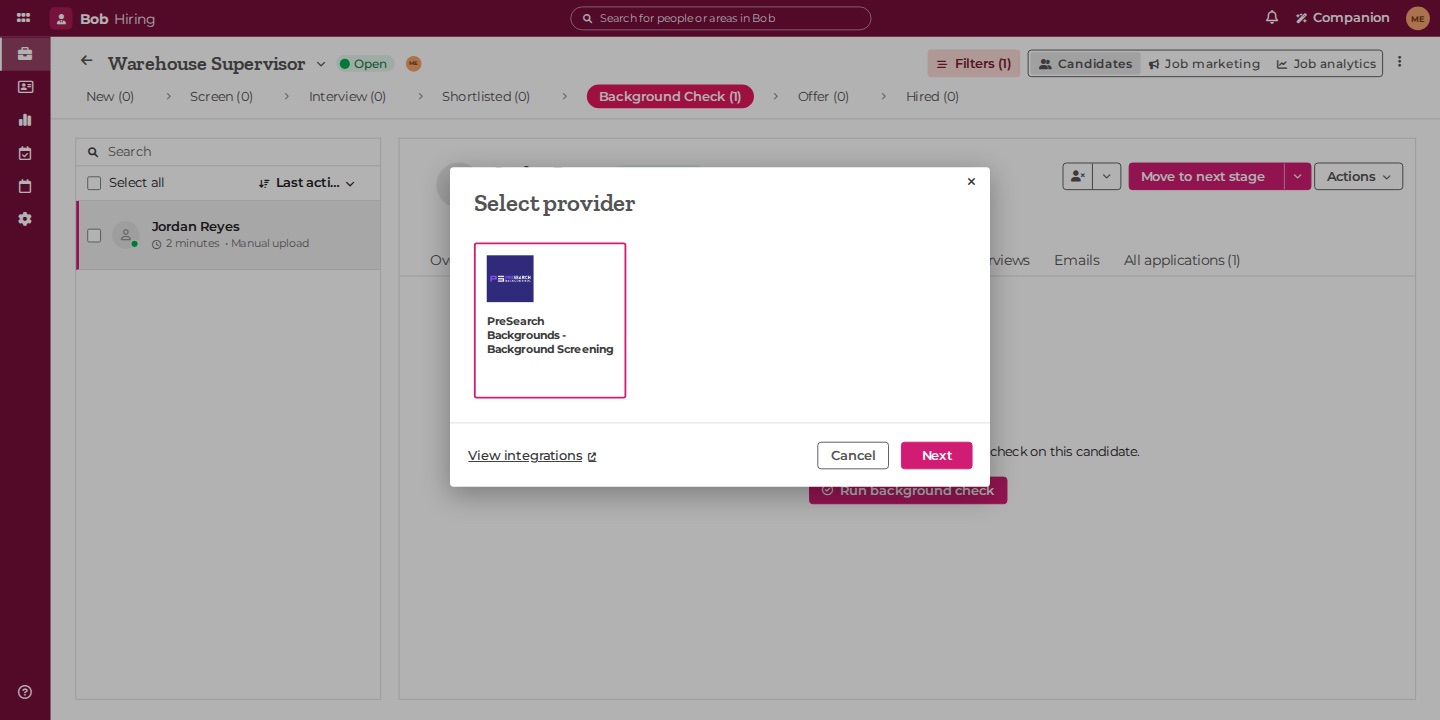
- 2Select Run background check, choose PreSearch Backgrounds as the provider, then Next.
- 3Choose a package and select Run.
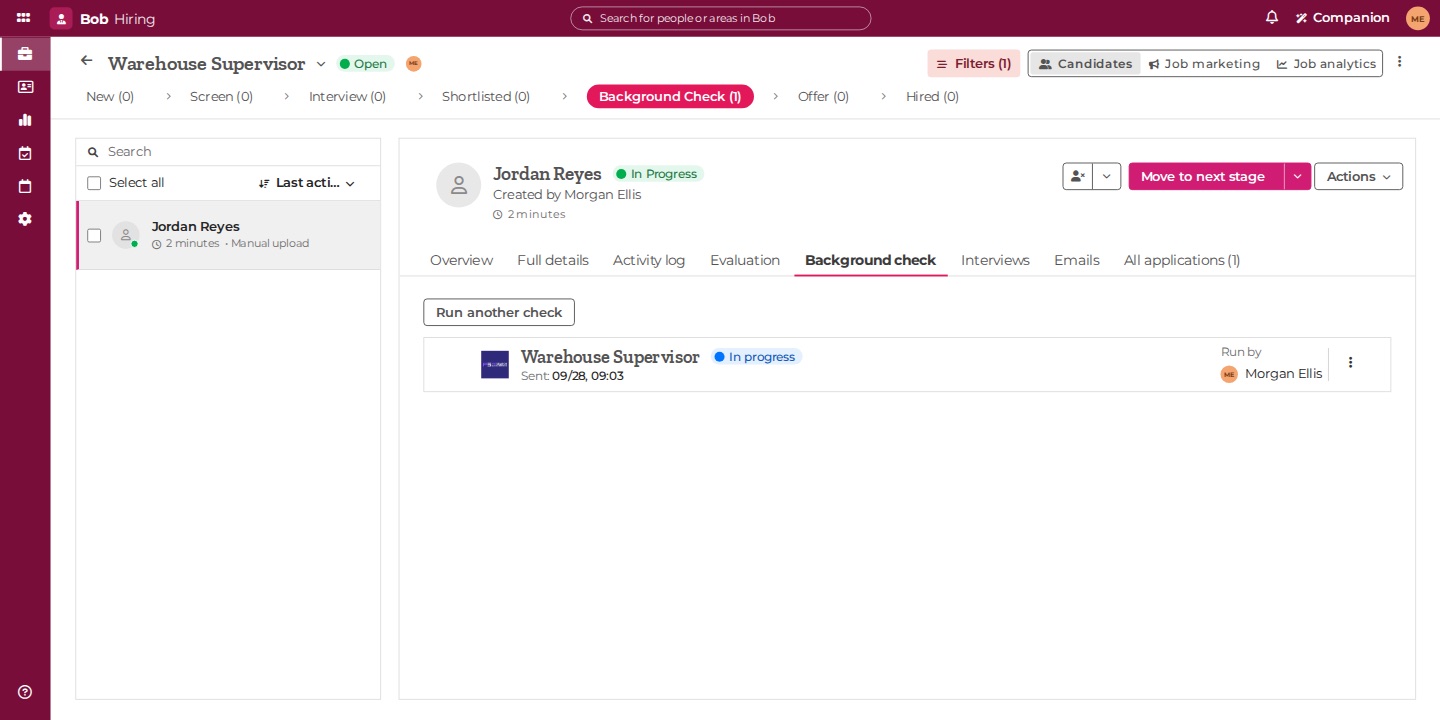
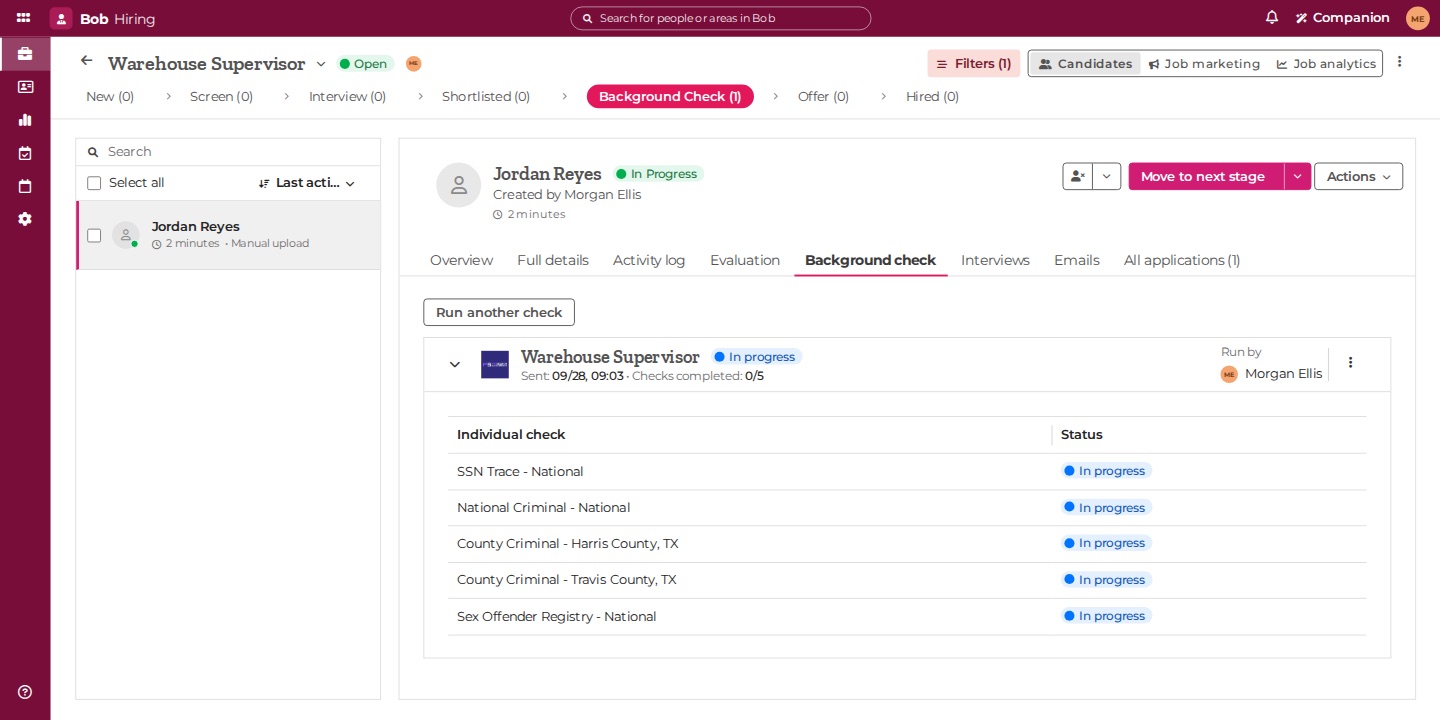
- 4The check appears on the candidate as In progress. The candidate receives an email from PSBI with a secure link to complete their consent and details.
Review the order and confirm the results
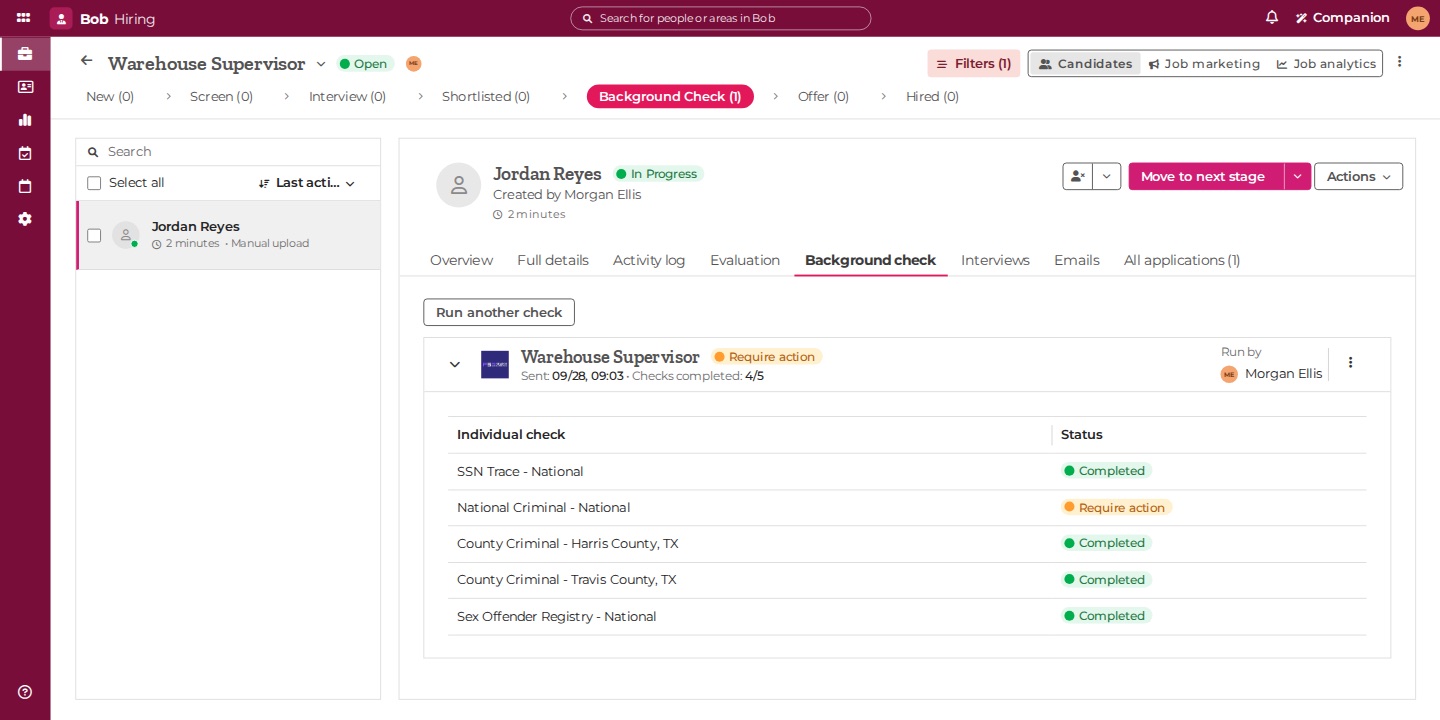
- 1When the candidate finishes their part, Bob shows Require action: the order is waiting for your reviewer in PSBI.
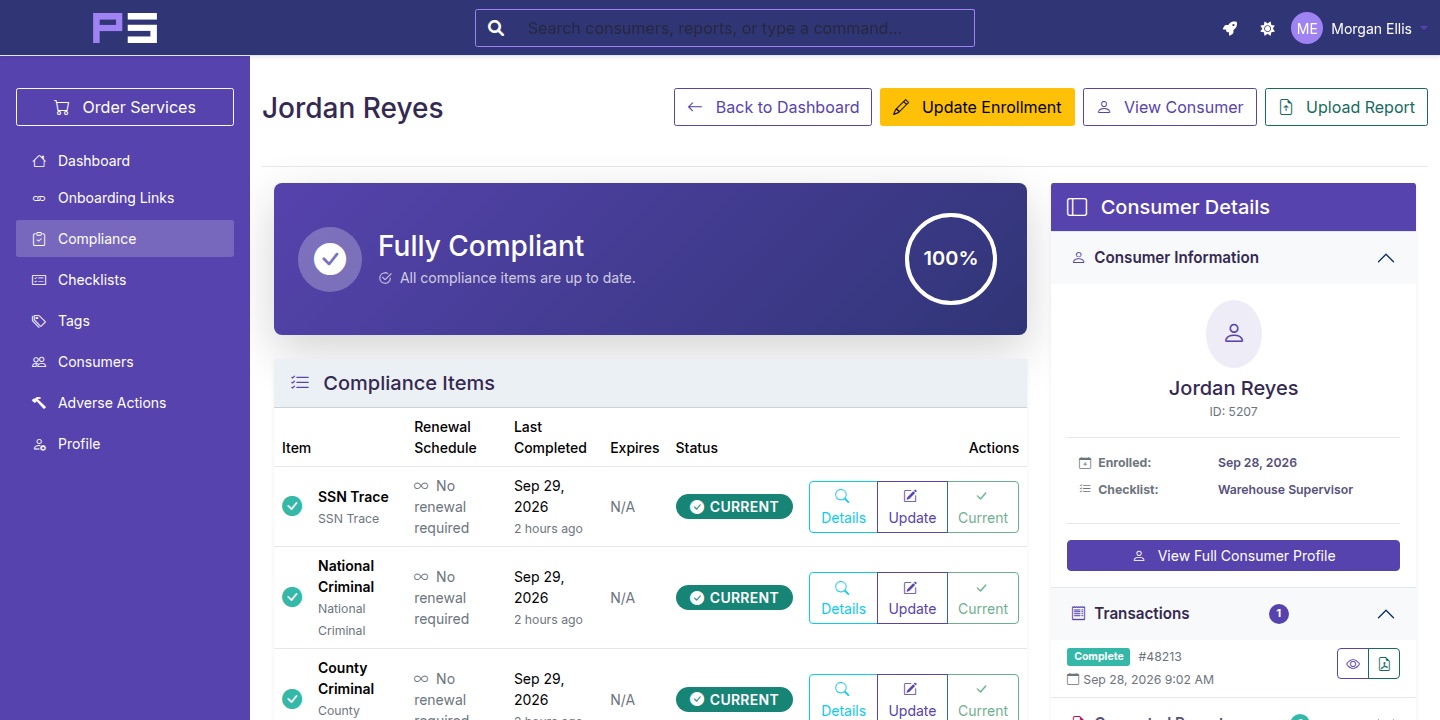
- 2In PSBI, open the candidate's compliance record, review the order under Order Pending Review, and submit it. Checklists can also be set to submit automatically.
- 3Bob returns to In progress and lists each search on the check with its own status.
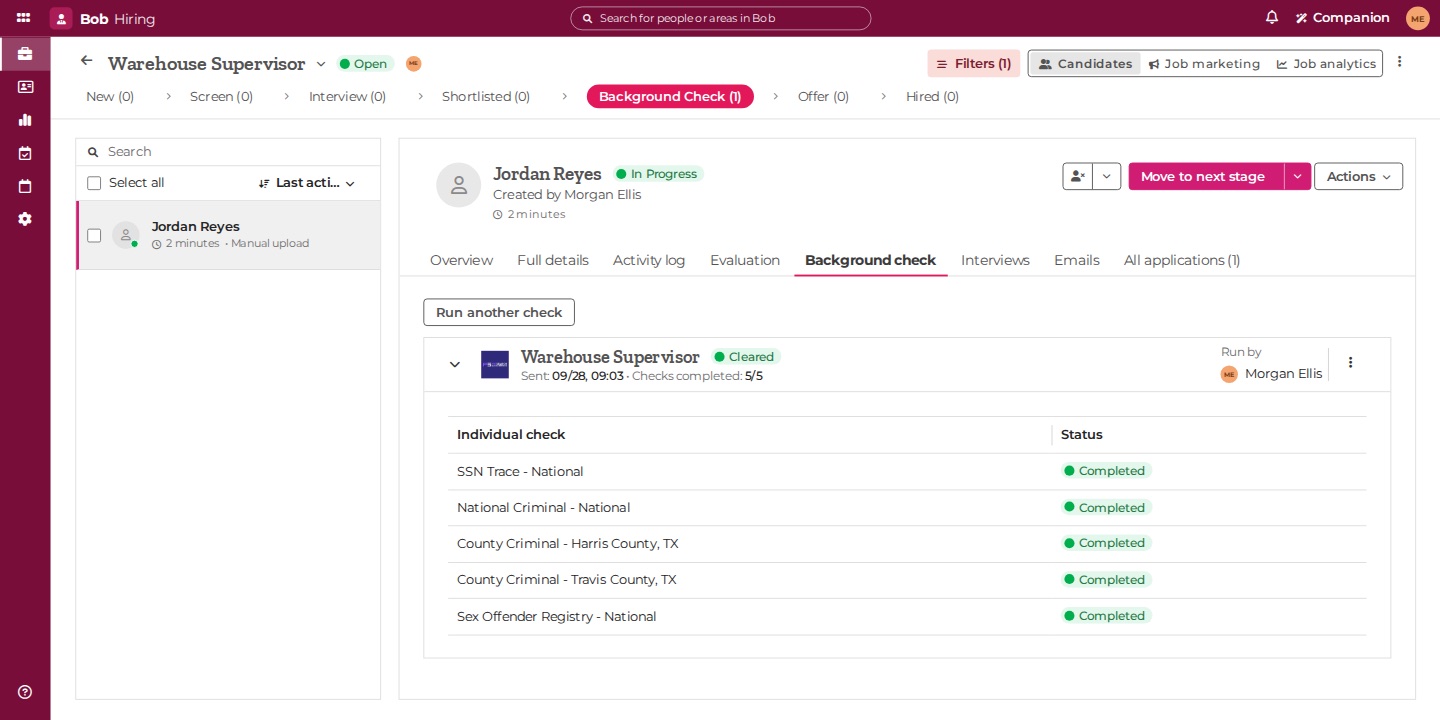
- 4When the screening completes clear, every search reads Completed and the check reads Cleared. The full results and the report are on the candidate's record in PSBI.
Validation
Validate before launch
Run these checks with your PSBI implementation lead using the test candidate. Do not go live until the full path works once.
Once it is running
A recruiter opens the candidate, runs a background check, and picks a package. Everything after that happens on its own — the candidate is invited and completes their own information and consent, your reviewer submits the order in PSBI, and the check on the candidate stays current through to the result.
Data sync
| When | Direction | What moves |
|---|---|---|
| Recruiter runs a check | Bob → PSBI | Bob notifies PSBI of the new check. PSBI reads the candidate's name, email and phone, the job, who ordered it, and the package. |
| Candidate is invited | PSBI → Bob | The check reads In progress. |
| Candidate completes intake | PSBI → Bob | The check reads Require action while your reviewer submits the order in PSBI. |
| Order is submitted | PSBI → Bob | The check reads In progress, with one line per search. |
| Screening completes | PSBI → Bob | Each search reads Completed, or Require action if its result needs review; the check reads Cleared or Require action. |
| Recruiter cancels the check in Bob | Bob → PSBI | PSBI stops updating that check. Work already in progress is not cancelled automatically — contact PSBI if the screening should stop. |
| App is uninstalled in Bob | Bob → PSBI | Bob revokes PSBI's access. PSBI detects this on its next call, deactivates the connection, and stops writing to Bob. |
Troubleshooting
There is no Run background check button on the candidate.
The application is not in a pipeline stage whose type is Background check. Check the pipeline template in Hiring settings, or move the candidate to the stage that has it.
PreSearch Backgrounds is not offered as a provider.
The app is not installed on this Bob company, or it was installed before PSBI's listing was enabled for hiring. Ask PSBI for the install link; if the app was already installed, uninstall it under Marketplace → Manage apps first and install again.
The package I expected is missing, or the names are out of date.
The package list in Bob is published by PSBI from your checklists. Tell PSBI what changed and we republish it. A package that was retired cannot be ordered again; checks already ordered with it continue.
The check says Require action and the note says the package is not configured.
The package no longer maps to a checklist. Contact PSBI; once the mapping is fixed the recruiter can run the check again.
The check stayed on Require action after the candidate finished.
That is the signal that the order is waiting for your reviewer in PSBI. Once the order is submitted, the check returns to In progress and lists each search.
The candidate says they never received the invitation.
Check the email on the candidate's Bob Hiring record is individual and correct, and have them check spam. If the address was wrong, contact PSBI rather than running a second check.
A check needs to be cancelled.
Cancelling in Bob Hiring stops PSBI from updating that check, but does not stop work already in progress. Contact PSBI to cancel the screening.
Statuses stopped updating after someone changed the app in Bob.
If the app was uninstalled or its authorization revoked, PSBI deactivates the connection and stops writeback. Contact PSBI to reinstall through your existing connection — reinstalling the same company reactivates it rather than creating a duplicate.
Need a hand?
Contact your PSBI implementation lead. Include:
- The job and the candidate's name as they appear in Bob Hiring
- The package that was ordered and roughly when
- The status you expected and the status you see
Do not send intake responses, report contents, or other screening information by email.