
Planning Center integration
A background-check workflow your team can run from Planning Center.
See the complete path: configure requirements, enroll a person, collect authorization, approve the order, and receive results back in Planning Center.
Planning Center is the operational home. P51 handles enrollment, consumer intake, and the one client-approval step.
The integration loop
- 01Configure
- 02Enroll
- 03Authorize
- 04Review & complete
End-to-end walkthrough
Follow Alex’s background check from setup to completion.
Each step is documented with the actual screens your Planning Center administrators and consumers see along the way.
Screening requirements live in Planning Center.
A Compliance tab holds the role and any optional tags. A two-step workflow gives your team one deliberate place to start a check.
Role
Selects the screening package — Volunteer, Church Staff, and so on.
Optional tags
Adds requirements such as driving or working with minors.
One trigger step
A card arriving on Check Submitted is the only thing that starts a check.
Start a check the way you move anyone through a workflow.
Add the person, set their role and tags, and complete the step. Nothing else is required from your team.
Set the requirements
Role and optional tags can be set on the profile, or from the card itself using Perform Action.
Complete the step
The card moves to Check Submitted, which tells PSBI to enroll the person.
No duplicates
Moving the same card again does not enroll the person twice.
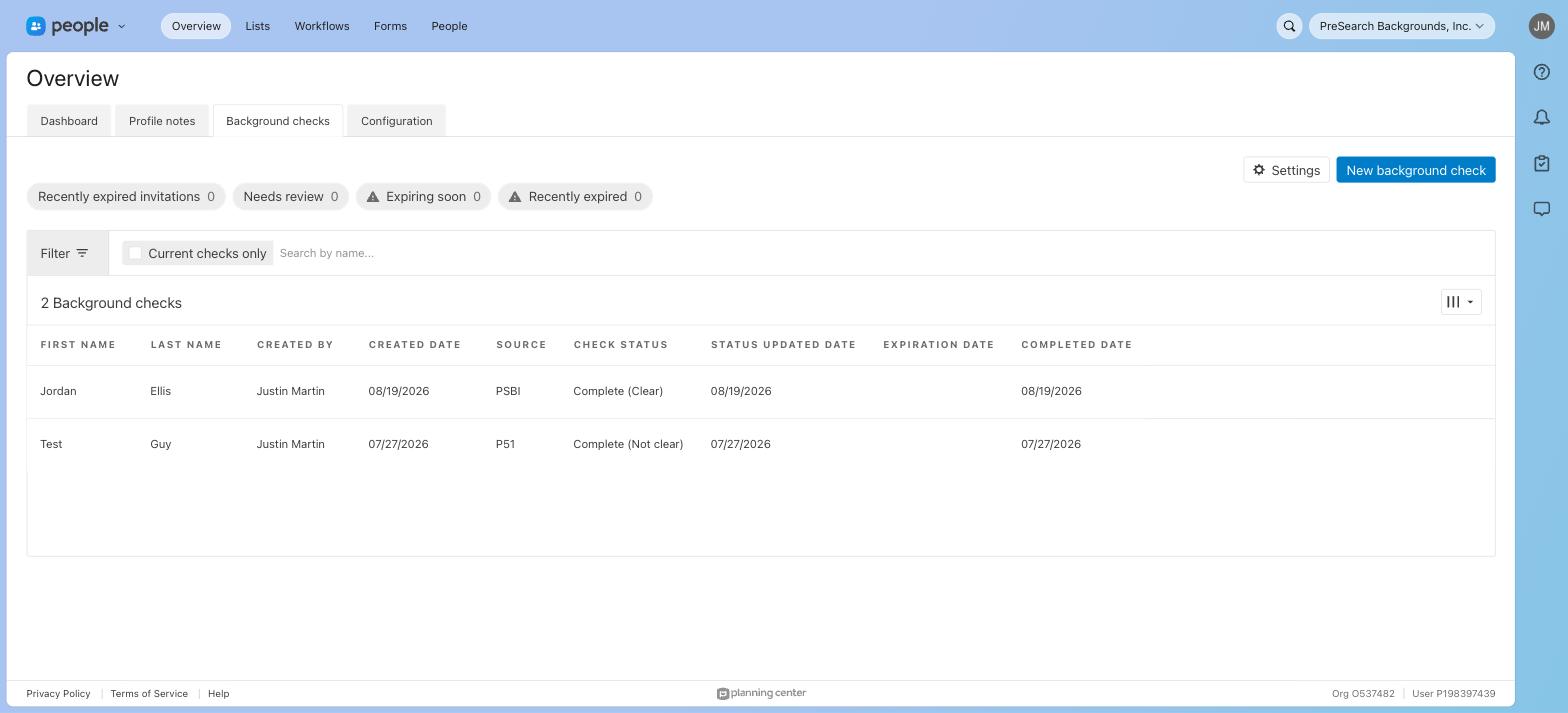
Watch progress without leaving Planning Center.
The person receives their own invitation from PSBI. Their Planning Center record carries the current state, a note, and a link straight to the work that needs doing.
Native statuses
These are Planning Center’s own background-check states, not a bolted-on field.
One approval moment
The PSBI link opens the exact order waiting on a client administrator.
Requirements applied
The driver tag added a motor vehicle record alongside the criminal search.
Results return on their own.
When screening finishes, the status, completion date, and note are written back, and the compliance record is kept current for renewal.
Automatic write-back
Processing and completion appear without anyone re-keying them.
One record per person
A repeat screening updates the existing record rather than adding a second row.
Renewal tracked
Each requirement carries its own renewal date once complete.
One connected workflow
Start with a role and tags. End with a completed result.
The workflow advances automatically after P51 receives the enrollment, the consumer completes their intake, a client administrator approves the order, and results are returned to Planning Center.
Get started with Planning CenterGet started
Run this from your own Planning Center.
Talk with PSBI about the way your organization works today. We will map the roles, workflow, and Planning Center connection before launch.
- No developer, no API keys. Your team approves one authorization link.
- Screen by role. Volunteers, staff, and drivers each get the checks their role calls for.
- Status where you already look. Results land on the person’s Planning Center record.
- Renewals tracked. Each requirement carries its own renewal date once complete.
Already set up? Follow the Planning Center configuration guide.